The HP DesignJet Z5400 at a Glance

Clear Choice Technical Services

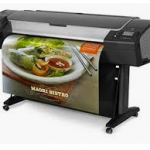
UNDOUBTEDLY, WE ALL give importance to our gadgets and devices. Ironically, whenever we see the tech companies release a new, more advanced, sexier model, we don’t give a moment’s doubt to drop the ones we have and buy the newer models. The same goes for plotters. Often times, instead of leasing plotters, buying a newer model would be advantageous for the business. One of the most recent models Hewlett-Packard released is the HP DesignJet Z5400, a 44-inch wide format printer with a 6-ink printer — magenta, cyan, yellow, gray, photo black and matte black — allowing more in-depth colored printouts. It has a pigmented ink, meaning, printouts would be long lasting and water resistant. This comes in very handy since some colored printouts fade over time or get damaged when wet. The Z5400 has two feeder rolls at the back (loading two different sizes of media) and the output tray at the front. The plotter accepts various sheets for printing — fine art paper, bond paper, backlit paper, and banners. This model will further please those environmentally-conscious users as the Z5400 garnered the “energy star,” which is given to business or products that display energy efficiency, this means the model can perform its printing with a minimum amount of energy (120 Watts). Versatility is also one thing to look for in this plotter since you can actually purchase the device as an MFP, that allows you to get it with a built-in scanner. People who use and purchase the DesignJet Z5400 claim that the plotter model is a great upgrade compared to the past plotter models released by HP. Users have printed maps, posters, and so much more from the device. In hindsight, the HP DesignJet Z5400 has so far proven itself to be an all-around printer that delivers high-quality printouts at amazing speeds. Environmentally speaking, it passes as an energy efficient device which does both the environment and the users good. Overall, it serves as a great jump forward for people looking to find a good replacement for their old plotter models. If your location is around New York, you may also visit Copier New York and, Copier Lease New York or call Service Location NEW YORK : (866) 620-2287

Setup Plotter With USB In 9 Easy Steps

Clear Choice Technical Services

The installation of a plotter to a computer takes knowledge and skill, but it does not require expertise in computer engineering or physics to be able to set it up in your computer. In fact, all you need is a USB and that’s it! With a step by step guide, getting it setup is as easy as a breeze. However, before you worry about how to set it up, it’s important that you know what a plotter is for. How different is this hardware from that of the regular printer that people usually use for their home or in their office? What is a plotter? A plotter is a hardware device that is much like the printer that people often use. The only difference is that plotters is used particularly for printing vector graphics. Instead of the usual dots that the regular printer uses, the plotter uses lines for printing. Also, it uses a writing tool in doing the process. It can be a pencil, a ballpoint pen, marker or any other writing tool to draw multiple lines, continuously, on the page. Although it has once been the only device used to work on computer aided designs, these devices have been replaced by wide-format printer. Schematics and other similar software programs use the plotter to make a print out of the output that is on the screen. Plotters are used to print in very large papers and still the quality of the prints remain the same. Everything come in high resolution, that’s why it remains to be one of the favorite hardware devices for vector graphics printing. Did you know that plotters can also print in other surfaces as long as they’re flat? May it be wood, sheet steel or even aluminum, the plotter can be used to print on them. How is the plotter installed in the computer using the USB? Before you set the plotter on to the computer, you must first install the printer driver that comes with the package. It is the first step as it is needed to eventually install the program that will make the plotter work with your computer. How is this done? Here are the steps:Step 1: Click the Start button and go to Windows “Faxes and Printers.” Click the right key on the Printer Driver and select Properties.Step 2: Go to the Ports tab and check which USB port is the printer driver is using. Usually, it will show USB 1 or USB 2. (NOTE: if you cannot read the USB port, simple click the box to expand the column using the mouse.)Step 3: A dialogue box will appear. Click the Add Printer button to install a generic only printer. Then simply follow the instructions in the dialogue box. Click next until the installation is done.Step 4: Select the correct USB port, then select the term Generic under the Manufacturer and click Next.Step 5: Leave the name of the printer as generic and click Next.Step 6: Remember to click on the Do Not Share Printer option. Then click Next.Step 7: You will be asked to do a test print, but click NO.Step 8: Then click Next until you reach the box that says the process has been completed. Click FINISH and the Generic Printer has been installed.Step 9: When you open the plotter program, you will be given the option to do a test print. The plotter should be able to do the file that you’ve chosen and your plotter is good to go. Plotters serve their purpose. And even if there are multiple options today that are more technologically advanced, the plotter remains to be one of the popular option because of the quality of work that it is able to produce. If your location is around Chicago, you may also visit Copier Lease Chicago, Copier Rental Chicago, Copier Chicago and Copier Repair Chicago or call Service Location Chicago (312) 216-0722

3 Best Practices To Keep Inkjet Plotter Printer In Excellent Condition

Clear Choice Technical Services

There are three types of technology involved when we speak of a large format plotter: LED toner, Océ ColorPearl CrystalPoint, and inkjet. Although each comes with an individual set of variation when it comes to maintenance, inkjet is more likely to have a rapid change. Here are the 3 ways to keep a large format plotter in pristine condition and avoid costly plotters repair services. Change the Maintenance Cassette The maintenance cassette is responsible for collecting an overspray ink. It is also the purging stop for the printhead during a system nozzle check. With several uses, the cassette will eventually be full and you will be asked to change it. Some people, however, try to avoid this process by making an improvised maintenance cassette cleaning. It is important to note that recycling a dirty maintenance cassette can result in problems since it can bring a negative effect on the print head. In fact, a dirty cassette will not be able to clean it properly once the plotter makes its internal print head maintenance. That being said, it is less expensive to purchase a maintenance cassette instead of changing a damaged print head. Print a Single-Colored File Every Week This pertains to the smooth-flowing ink in the printer. It has been years since the last time a manufacturer for a wide format plotter made a design that is only for a monochrome printer. Now, all are color systems. However, there are still a lot of people who rely on a printer for their black and white prints. That said, printing an occasional color printer would be very useful, regardless if it is just a test pattern in order to maintain clear color lines and nozzles. Keep it on It should be noted that there is plenty of liquid throughout an inkjet large format plotter. The ink is always there inside the ink tanks, print head, and the plumbing system even if you have a pigment or dye printer. This means that putting the ink in a static condition is not a good idea. This condition resembles  a hard freeze. Majority of us will let a faucet dripping during an extremely cold night to keep the water flowing to prevent it from freezing and breaking the pipes. The same theory can also be used to an inkjet plotter. When the ink is not allowed to move and flow through the system, it will most likely start to solidify and may eventually dry up. The best thing to do to avoid this is keeping the power of the plotter on. This allows the machine to check itself and keep a small amount of ink away through the print head and make the nozzle clear. Through regular maintenance and proper care of your large format plotter, the machine will provide you with the best results for a long period of time. It will also bring a significant effect on its total cost of operation. When you ignore the important and rely on a quick and cheaper way, you will only lessen the longevity of some components that are more expensive to replace. If your location is around Miami you may visit Copier Lease Miami, and Copier Repair Miami, or call Service Location Miami (305) 203-0533

Why You Need a Plotter

Clear Choice Technical Services

PRINTING MOSTLY ENTAILS the use of a printer, but that isn’t always the case. Especially, not with plotters. This is one of the best devices that produces a hard copy of an image. Plotters rarely come to mind as it is not so popular among common people since this is something that specializes in producing hard copies of designs. By designs, we don’t mean the beautiful artistic ones you see in paintings or drawings, but rather, the highly accurate two-dimensional designs used for buildings, houses, cars, and the likes. In that sense alone, if you require this certain kind of device, then a plotter is probably the device for you and here’s why: Unlike a printer, a plotter can draw images on just about any surface whether it be on a wood, canvas, styrofoam, or just about anything that’s relatively smooth and flat. You see, a plotter is basically a machine that draws an image using robotic arms so it doesn’t require the medium to be inserted into the machine like how it is with a printer or copier. Aside from the flexibility in terms of materials that can be printed on, a plotter could also do its sketches on a larger area as opposed to the typical bond paper. Designs are usually printed on areas extending to a few feet in width, for ease, clarity and overall practicality, for the benefit of those who are actually in charge of constructing the design. Lastly, a plotter device can save its designs on a disk, allowing it to reproduce the designs a thousand times over if needed. This lessens redundant efforts and allows a speedy reproduction. With all these advantages, we can say that a plotter is a good investment for those in the designing business. You can lease out or buy one if it means quality and accuracy, then you know you are making the right choice. If your Location is around Chicago, you may visit Copier Leasing Chicago, Copier Repair Chicago, Copier Rental Chicago, Copier Chicago or call Service Location Chicago (312) 216-0722

Copier Lease Request


This will close in 0 seconds

Service Request

Quality and Affordable Service, Repair, and Maintenance for Your Copiers and Printers

Your business productivity is important to us, which is why we provide a hassle-free and affordable service for all models of copiers and printers in any condition. We offer great value for the money when it comes to our repair and maintenance services.

  • Factory certified and highly qualified service technicians
  • A highly trained service technician onsite within 24-48 hours
  • Affordable rates starting at $85/hour
  • High inventory of repair and replacement parts for most copier and printer brands

We are a one-stop shop for all your copier and printer repair and maintenance needs. 70% of our service requests are resolved on the 1st visit. You are guaranteed prompt and quality service wherever you are in the US.

For fast, reliable, and quality maintenance and repair for your copiers and printers, the choice is clear: Clear Choice Technical Services!

For an accurate diagnosis and a faster transaction time, please fill out the form below.


This will close in 0 seconds

Remote Computer/Copier/Printer Support

Remote Support Information

*Copier and Printer

We typically connect to your computer, which should be on the same network as the copier. This allows us to access the copier's Web Interface for more effective troubleshooting and to adjust any settings that may require modification or configuration.

*Computer

We will explore various troubleshooting steps, and if the issue is related to the network, we may discuss it over the phone without remote access until we resolve the problem.

Machine Capability

Please confirm if your copier can still copy or print standalone (e.g., without any computer or network connection) to ensure we address your issue effectively. Complete this questionnaire to the best of your ability, and we will get back to you promptly to schedule remote support. Thank you for choosing our services, and we look forward to assisting you.


This will close in 0 seconds

Maintenance Contract

[contact-form-7 id="3fd83a9" title="Maintenance Contract"]


This will close in 0 seconds

Short Term Rental

This will close in 0 seconds

This will close in 0 seconds